Control Sessions and Controllers
A Control Session represents one player occupying a Control Station and controlling its Assembly. Starting a session places the occupant at the station, creates a separate Controller UObject, and connects the station's Input Actions. Ending the session removes those bindings, restores player movement, and places the occupant at the authored Exit transform.
The Assembly Controller runs inside that session. It converts semantic input such as Move, Throttle, or Attitude into actuator output.
How input reaches a Controller
Key or device input
      ↓  active Input Mapping Context
Input Action
      ↓  CAT Assembly Interactor Component
Control Station input binding
      ↓  semantic Controller slot
On Controller Update
      ↓
Motor / Fan / actuator output
Control Station input has two separate layers:
Enter and leave the Control Session
The CAT Assembly Interactor Component handles session-level input.
The settings below are in Details > Input on the CAT Assembly Interactor Component attached to the player's Character or Pawn.
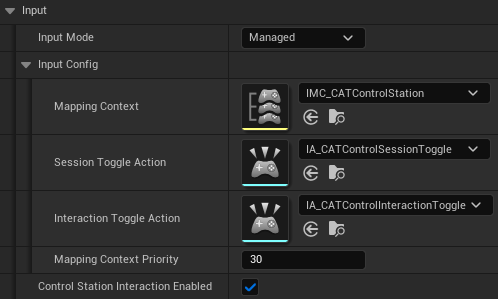
- In
ManagedInput Mode, it addsIMC_CATControlStationand binds its configured actions. By default,IA_CATControlSessionToggleuses R to enter the nearest available station or leave the active one. IA_CATControlInteractionToggleenables or disables Control Station interaction. Disabling interaction during an active session also ends that session.- In
ExternalInput Mode, CAT does not manage the context or these bindings. CallTry Begin Control Station Interaction,Toggle Control Station Interaction, orEnd Control Station Interactionfrom your own input code.
Create a Controller Part for the Assembly
To control an Assembly, use a Part Model with a Control Station feature as its Controller Part. A Controller Part is not a separate asset type.
- Open the Part Model that will represent the seat, cockpit, console, or other control device.
- Add a Control Station feature in the Features panel.
- Select the Controller Class that matches the Assembly, then adjust its Controller Settings.
- Assign an Input Action to each Controller Input Slot.
- Add the Controller Part to the Assembly in the Assembly Editor.
When the player enters this Part, CAT starts a Control Session and sends the assigned Input Actions to the selected Controller. Map the keys or gamepad controls for those actions in an Input Mapping Context used by the player.
Create a Control Station
In the Part Model Editor's Features panel, add a feature and select Control Station.
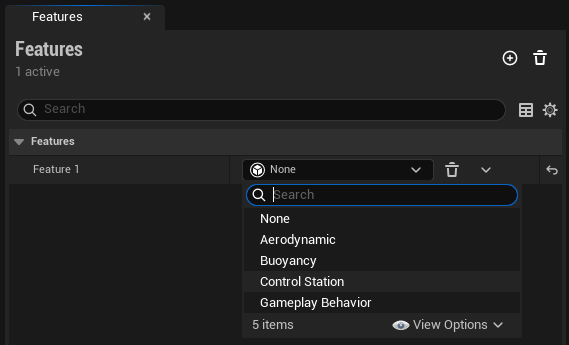
- Add a Control Station feature to the appropriate Part Model.
- Select a Controller class.
- Assign compatible Input Actions to the Controller's input slots, and map those actions in an Input Mapping Context used by the player.
- Configure occupant, control, and exit frames.
- Validate the Part Model and Assembly.
Control Station parameters
The Control Station feature's Details panel defines how the player occupies the station, how the camera behaves, and which Controller receives input.
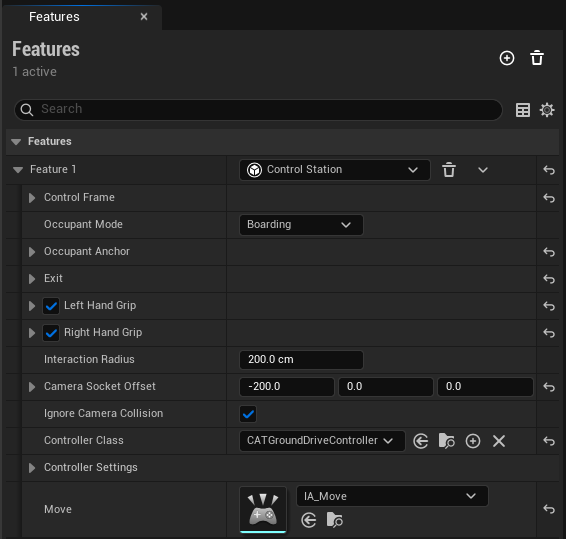
| Parameter | Purpose |
|---|---|
Control Frame |
Defines the reference frame used while controlling the Assembly. |
Occupant Mode |
Chooses whether the occupant remains visible at the station or is hidden during control. |
Occupant Anchor / Exit |
Sets where the occupant is placed during the session and after leaving it. |
Left Hand Grip / Right Hand Grip |
Provides optional hand targets for character IK. |
Interaction Radius |
Sets how close the player must be to enter the station. |
Camera Socket Offset |
Offsets the third-person camera while the station is occupied. |
Ignore Camera Collision |
Excludes the controlled Assembly from the occupant camera collision test. |
Controller Class / Controller Settings |
Selects the Assembly Controller and exposes its tuning values. |
| Input Slots | Assigns an Input Action to each semantic Controller input such as Move, Throttle, or Attitude. |
Built-in Controllers
| Controller | Intended use | Default input |
|---|---|---|
| Ground Drive | Wheels, tracks, differential steering | Axis2D movement |
| Aircraft | Throttle and attitude control | Axis1D + Axis3D |
| Watercraft | Forward drive and steering | Axis2D movement |
Occupant Mode
| Mode | Occupant placement and rendering | Suitable use |
|---|---|---|
Boarding |
Uses the authored Occupant Anchor position and rotation. The occupant remains rendered while controlling. |
Seats, cockpits, decks, and other cases where the character should remain visible. |
Possession |
Locks the occupant position to the local origin of the Part that contains the Control Station, while retaining the Occupant Anchor rotation. The occupant is suppressed from rendering while controlling. |
Making the character invisible while the player controls a vehicle or device. |
During a Control Session, the occupant is attached to the Assembly and locked to the control position. A character with Character Movement has movement disabled during control and restored when the session ends. The authored Exit transform is used on exit. Occupant Anchor scale is not used to change occupant scale.
Possession describes CAT Control Station behavior only; it does not describe a general Unreal AController::Possess call.
Camera Settings
| Property | Description |
|---|---|
Camera Socket Offset |
A local-space position offset, in cm, added to the third-person spring-arm socket while the station is occupied. FVector::ZeroVector keeps the existing camera framing. Use it to move the framing to the right, up, back, or another position; it is not a rotation value. |
Ignore Camera Collision |
When enabled, the local occupant camera ignores the currently controlled Assembly for its collision test. This can reduce cases where the Assembly pushes the spring arm too close to the camera. It does not disable other collision or interaction queries. The default is true. |
Custom character integration
The Control Station Feature provides the camera setting data; it does not automatically apply the settings to every character spring arm. The supplied ACATDemoCharacter reads the values on Control Station interaction start, applies them, and restores its camera state when the interaction ends. Projects using a custom character or camera system must connect the same settings in their own camera code. See Source/CATSandbox/CATDemoCharacter.cpp for the sample implementation.
Create a Blueprint Controller
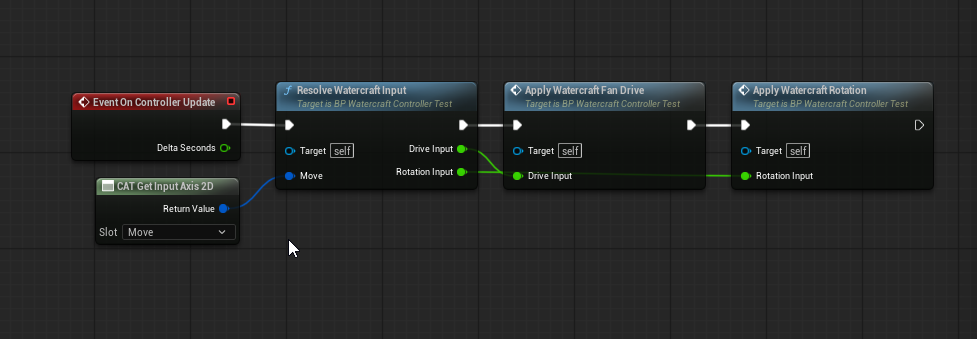
- Create a Blueprint derived from CAT Assembly Controller or a built-in Controller.
- Declare semantic input slots in Class Defaults.
- Implement
On Controller Started,On Controller Update, andOn Controller Stoppedas needed. - During
On Controller Update, find actuator handles and write the complete output frame.
Important runtime rules
- Controller output is valid only during
On Controller Update. - Actuator handles can become stale after an Assembly revision changes.
- Controller UObject variables are not replicated or restored for network resimulation.
- Do not replace the scheduled Controller update with general Event Tick.